
Quick start
This section explains how to get GitBruh up and running.
Install GitBruh
Click on the button Add to Slack in the homepage. You will be redirected to Slack authorization page. Choose the team to which you want to add GitBruh. Then, you will be redirected to GitHub authorization page.
If everything went well, you will receive a welcome message with information on getting more familiar with GitBruh.
Watch a GitHub repository
To start receiving messages for a given repository, you first need to tell GitBruh. Use the
Slack command /watchrepos username/repo-name. Make sure you are
on the team on which you added GitBruh.
A new GitHub webhook pointing to GitBruh is added to the repository you supplied. Learn
more about /watchrepos.
And that's it ! You should start receiving GitHub activity messages related to the newly watched repo from gitbruh Slack bot.
Slack commands
GitBruh comes with a set of slack commands to interact with users. These commands can be executed from any channel of a team where GitBruh is installed. All these commands are described in this section.
/watchrepos
Example : /watchrepos john/awesome-stuff john/another-stuff
Watch GitHub repositories by GitBruh.
You can specify one or multiple repos separated by a whitespace. When a repository is
successfully watched by a user, he will start receiving messages related to this repo. A repo can be unwatched by issuing
/unwatchrepos.
Under the hood, two things are happening here (for each repo):
To receive messages related to the repo, the steps above must be
successful. If not, the response from /watchrepos will contain additional
information on further actions to take to properly set up the repo.
Response
The response contains at most three sections :
/watchrepos
or manually. After adding
the webhook, you don't need to re-issue /watchrepos.
/watchrepos.
When no repos are supplied to the command, GitBruh will send an error message specifying the error details.
/unwatchrepos
Example : /unwatchrepos john/awesome-stuff john/another-stuff
Stop watching GitHub repositories by GitBruh.
You can specify one or multiple repos separated by a whitespace. When a repository is
unwatched, the user will stop receiving messages related to this repo. After issuing this
command, GitBruh will respond with a message with at most two sections(defined by the
outcomes below). Each section regroups the repos that meet its description. To watch again
/watchrepos.
Response
After issuing /unwatchrepos, GitBruh will respond with a messages containing
at most two sections :
When no repos are supplied to the command, GitBruh will send an error message specifying the error details.
GitHub activity messages
Messages are the bread and butter of GitBruh. Their function is to notify the user via Slack about his activity on GitHub using GitHub webhooks. Messages are posted in the Slack private channel (DM) between the user and the GitBruh bot. You will find in this section a full description of every message sent by GitBruh and how a user can interact with them.
Messages definition
New mention
This message is received when the recipient is tagged in an issue description or an issue or pull request comment.
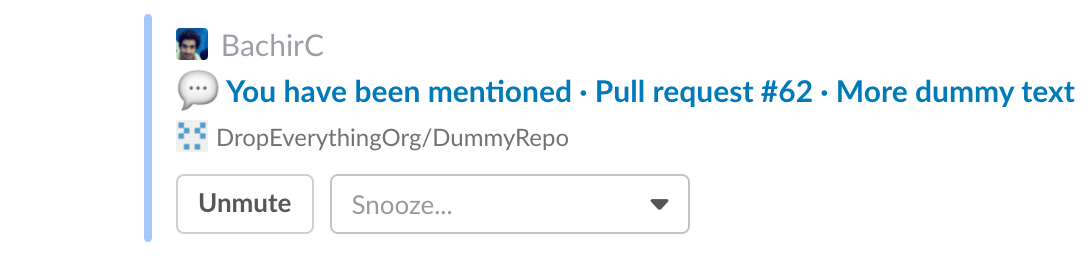
Review submitted
Messages sent when a review is submitted to one of your pull requests. The format will depend on the status of the review. Learn more about GitHub reviews.
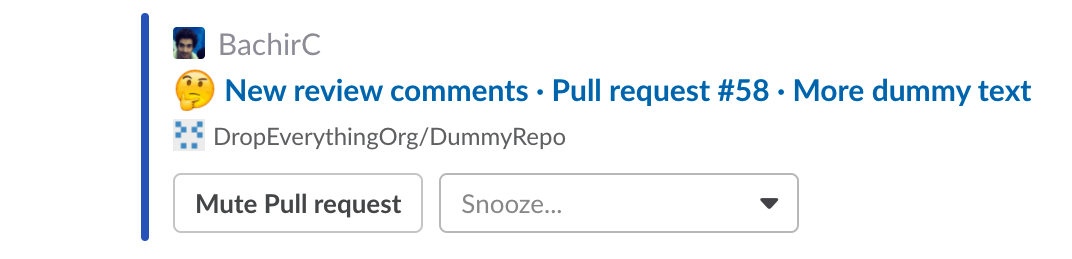
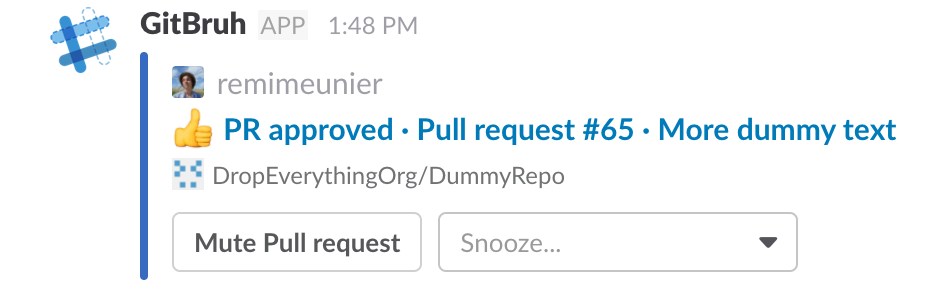
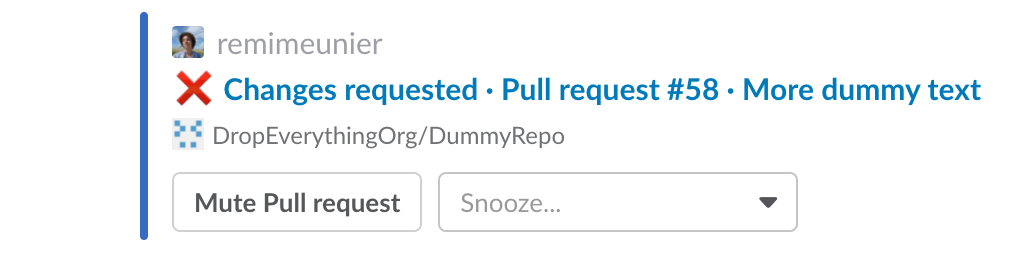
Review requested
This message is received when someone sets the recipient as reviewer for a GitHub pull request.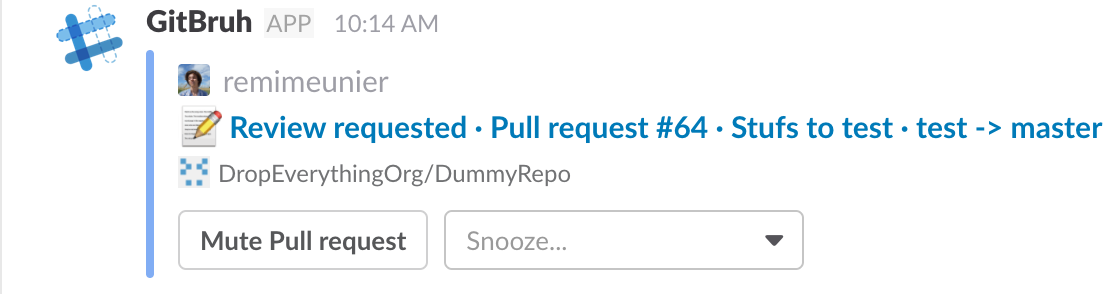
Message interactions
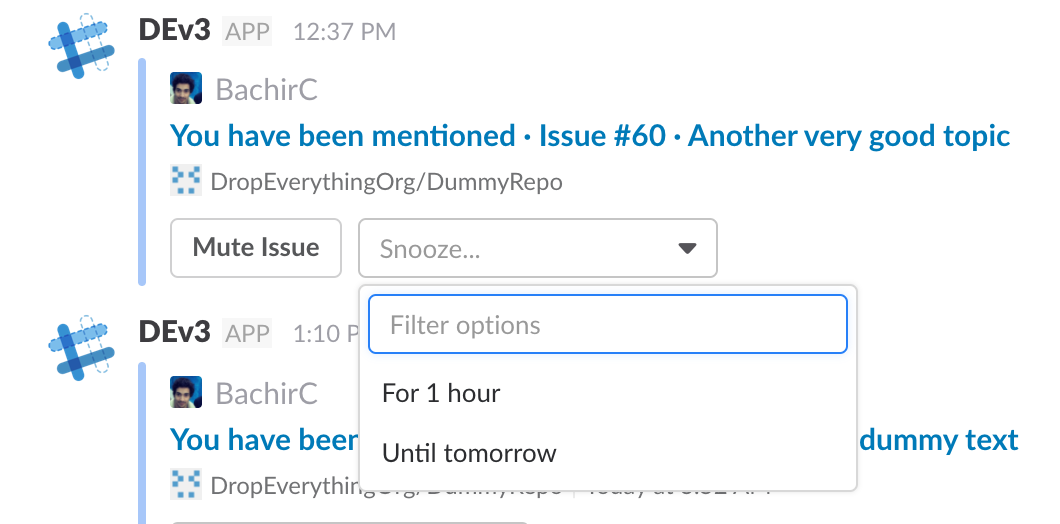
GitBruh leverages a cool feature of Slack API called interactive messages. Broadly, it allows a user to trigger one or multiple actions after receiving a Slack message containing elements for interacting with it (buttons, menus). GitBruh uses this API to allow users to interact with GitBruh messages in Slack by muting/unmuting issues or pull requests, or snoozing messages.
Mute
By clicking on the Mute Issue button, the user won't receive any further messages related to the issue. Clicking again will unmute the issue.
Unmute
By clicking on the Unmute button, the user will again receive messages related to the issue. Clicking again will mute the issue.
Snooze
A user can snooze a message to be able to act upon it at a more convenient moment. By clicking on the Snooze... button, a menu will show with two options (1 hour or tomorrow). The message will then be delivered at the chosen moment.
Webhook configuration
To be able to receive events from GitHub for a specific repo, GitBruh needs a webhook to be set up on the repo. Once the webhook set, GitBruh will start receiving events from GitHub for a specific set of actions undertaken by any collaborator on the repository.
Add a webhook manually
To add a GitHub webhook manually, follow these instructions. Use these parameters :